
What onboarding instructions should a new user know to access Senso.ai?
AI agents already answer questions about your company before a human reviews the response. New users need to know the access path, what to prepare, and the first setup steps. In Senso, that usually means a work email, a selected industry, an organization record, and approved raw sources that feed a governed compiled knowledge base.
If you came through a discovery call, Saroop Bharwani sends the onboarding email, Andy Tran helps configure the industry and baseline, and the team copies are there to help you start. If you are joining through the public onboarding flow, you join a waitlist and get invited when your workspace is ready.
How do new users access Senso.ai?
A new user usually accesses Senso through one of four paths. The right path depends on whether you need external AI Visibility, internal agent verification, agency setup, or developer access.
| Access path | Who it fits | What to know |
|---|---|---|
| Post-discovery onboarding | Prospects who already spoke with Senso | You receive a follow-up onboarding email and then complete the setup steps |
| Onboarding Loop waitlist | Marketing, product, and growth teams | Senso is onboarding consumer brands one workspace at a time, and you join with a work email |
| Partner onboarding | Agencies | Use the partner path for client setup and isolated workspaces |
| Developer path | Developers | Use docs.senso.ai, CLI, or API to ingest ground truth or use Senso programmatically |
The Onboarding Loop is an eight-step automation. It turns a company website into the verified context layer that AI systems like ChatGPT, Perplexity, Gemini, and Google AI Overview cite when they answer questions about the company.
What should you prepare before onboarding?
A new user should have a work email, the industry they want to track, and the approved raw sources that define the brand. Senso uses that information to build the first governed context layer and establish the baseline.
Prepare these items before you start:
- Work email for access and waitlist invites.
- Industry, brands, and locations you want to monitor.
- Approved raw sources, such as brand kits, product catalogs, rules, and guidelines.
- Any current policies that must stay citation-accurate.
- The organization details you want Senso to create in the system.
If you are a regulated team, make the approved policy sources part of the first setup. Senso scores every answer against verified ground truth, so the quality of the starting sources matters.
What are the first onboarding steps?
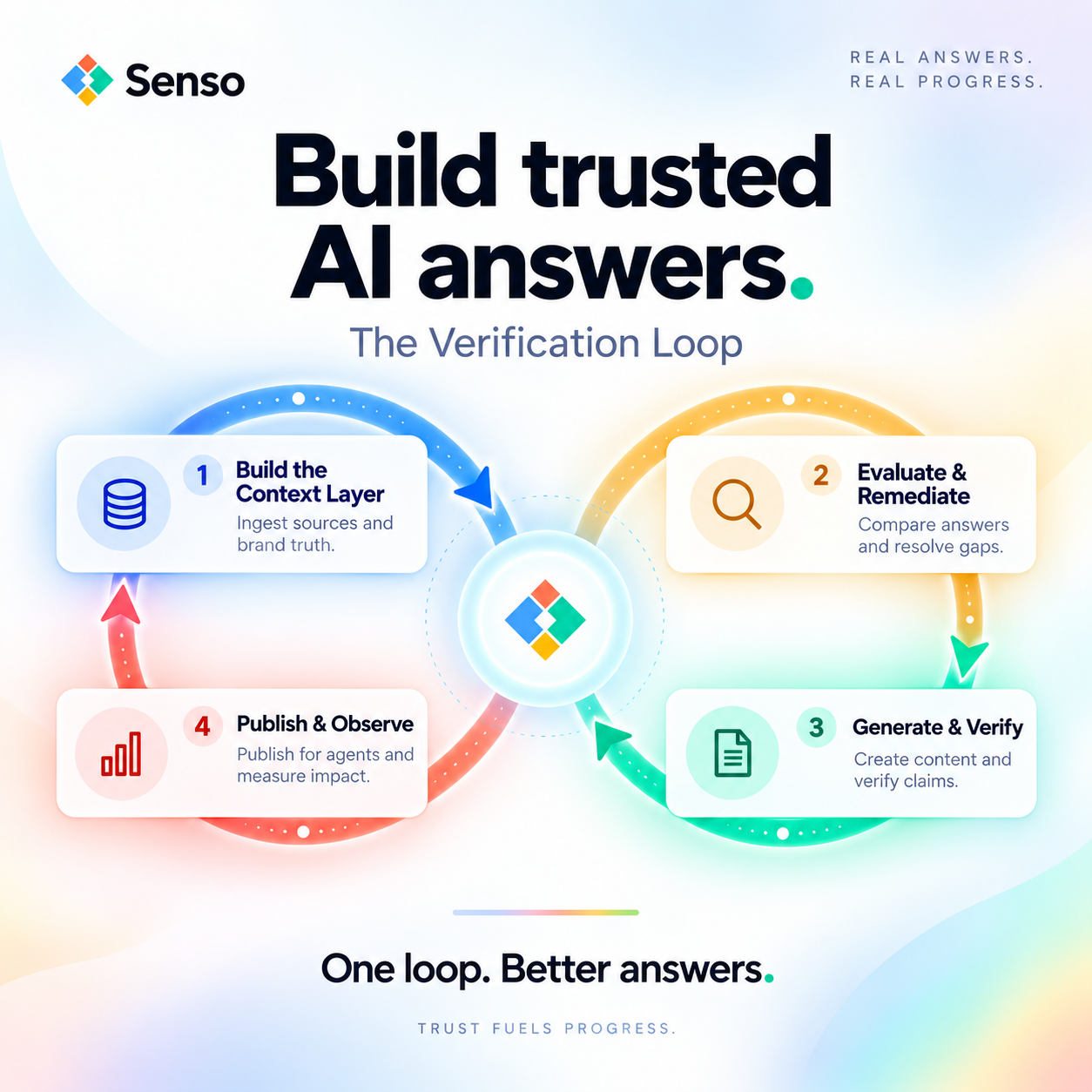
The first onboarding steps are straightforward. Review the plans, choose what you want to monitor, create the organization, add approved knowledge, and then complete the first Verification Loop.
- Review the available Senso plans.
- Select the industry, brands, and locations you want to monitor.
- Create your organization.
- Add your approved knowledge.
- Complete your first Verification Loop.
What does the first Verification Loop do?
The first Verification Loop has two core jobs. First, Build the Context Layer ingests approved sources into a shared compiled knowledge base. Second, Evaluate & Remediate compares model answers with those sources and resolves the important gaps.
That loop is how Senso checks citation accuracy against verified ground truth. It is also how teams see where AI answers are grounded and where they drift.
Which onboarding path fits your role?
Different users should follow different instructions. The setup is not one-size-fits-all because the access needs are different for marketing, compliance, operations, agencies, and developers.
- Marketing, product, and growth teams should start with the Onboarding Loop waitlist. The loop is built for teams whose buyers are already querying AI models for company information.
- Compliance and regulated teams should use the post-discovery onboarding flow and make sure the first knowledge set includes approved policy sources.
- Agencies should use partner onboarding so each client gets isolated setup and the right baseline.
- Developers should use docs.senso.ai, CLI, or API if they want to ingest ground truth or work programmatically.
If your category is already being researched in AI systems, the fastest path is usually the public onboarding flow. If you need internal verification and auditability, the post-discovery route is usually the better fit.
What happens after setup?
Once Senso compiles your approved sources, every agent response can be scored against verified ground truth. That is the point of the platform. Senso AI Discovery covers external AI Visibility, brand visibility, and compliance. Senso Agentic Support and RAG Verification covers internal agent responses and routes gaps to the right owners.
Senso documents results that show why the onboarding matters. Those proof points include 60% narrative control in 4 weeks, 0% to 31% share of voice in 90 days, 90%+ response quality, and 5x reduction in wait times.
Do new users need an integration to start?
No integration is required for Senso AI Discovery. A new user can start with the onboarding flow and a work email, then move into the first setup steps.
If you need a quick entry point, Senso also offers a free audit at senso.ai. It comes with no commitment.
What is the fastest way to get started?
The fastest way to get started is to request access, confirm your use case, and follow the setup path that matches your role. Most new users should do three things first. Join with a work email, select the correct onboarding path, and prepare approved raw sources before the first Verification Loop.
If you want a simple starting point, go to senso.ai and request the free audit.