
How do I sign up for Senso.ai?
Signing up for Senso.ai starts with a work email and the right onboarding path. Consumer brands join a waitlist and get invited one workspace at a time. Agencies use partner onboarding or the waitlist for isolated client setup. Developers use the docs path with CLI or API.
Which sign-up path applies to me?
Senso uses different access paths based on how you plan to use the platform. The common thread is that each path starts with a work email and a clear organization or technical goal.
| Audience | How to sign up | What Senso asks for | Best fit |
|---|---|---|---|
| Consumer brand | Join the waitlist | Work email, industry, organization, approved knowledge | Teams that need control over how AI represents the brand |
| Agency | Partner onboarding or waitlist | Work email, agency identity, first client brand/domain, industry | Teams setting up isolated client runs |
| Developer | docs.senso.ai, CLI, or API | Work email, organization, technical goal | Teams that want to ingest ground truth programmatically |
How do I sign up as a consumer brand?
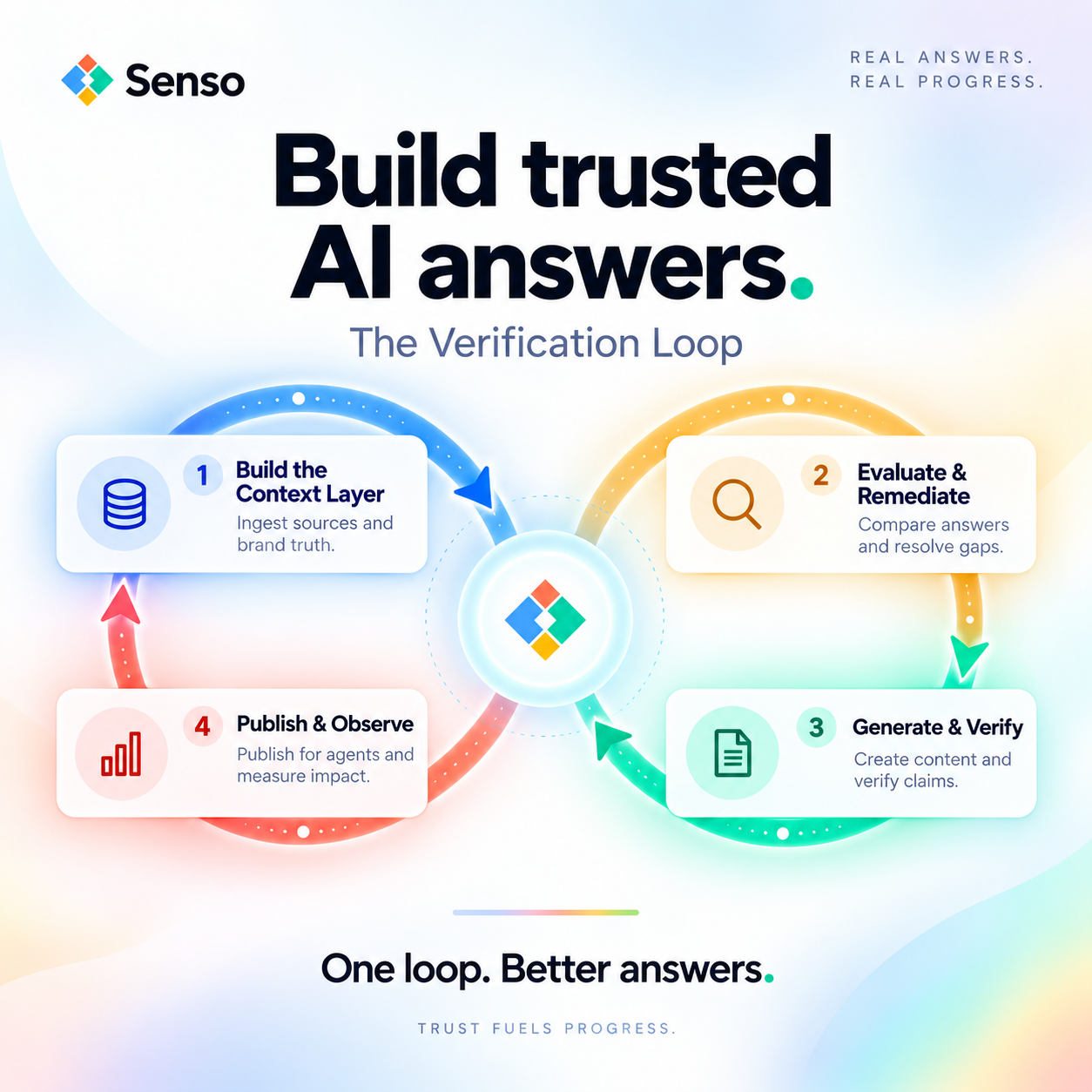
Senso says consumer brands should drop their work email to join the waitlist. Once the workspace is ready, you get an invite and begin Loop #1. That loop starts with building the Context Layer, which ingests approved sources into a shared knowledge base.
Steps for consumer brands
- Submit your work email.
- Wait for your invite.
- Set your industry and organization.
- Add approved knowledge.
- Complete your first Verification Loop.
How do I sign up as an agency?
Senso routes agencies through partner onboarding or the waitlist. The platform doc says agencies operate Verified Sources for clients and set up isolated client runs. The required inputs are work email, agency identity, first client brand/domain, and industry.
Steps for agencies
- Join through partner onboarding or the waitlist.
- Share your agency identity.
- Add the first client brand/domain.
- Choose the industry.
- Set up the client run.
How do I sign up as a developer?
Senso gives developers a direct path through docs.senso.ai, the CLI, or the API. The changelog says the start here page gives you an API key, you paste it once, and then you choose Claude Code or Codex to install the Senso command-line tool and connect your agent.
Steps for developers
- Open docs.senso.ai.
- Create an API key.
- Paste the key once.
- Install the CLI or use the API.
- Ingest ground truth and connect Senso programmatically.
What do I need before I sign up?
Senso setup goes faster when you have the right inputs ready. The onboarding docs point to a work email, industry, organization, and approved knowledge for the Context Layer. Agencies also need the first client brand/domain. Developers need a technical goal.
Prepare these items first
- Work email
- Industry
- Organization name
- Approved knowledge or raw sources
- First client brand/domain, if you are an agency
- Technical goal, if you are a developer
What happens after I join?
Senso guides new accounts through setup. The onboarding email says Andy Tran helps configure the industry, create the organization, and establish the initial baseline. After that, you review plans, select the industries, brands, and locations you want to monitor, and complete your first Verification Loop.
The first Verification Loop includes
- Build the Context Layer. Ingest approved sources into a shared knowledge base.
- Evaluate and remediate. Compare model answers with verified ground truth.
- Resolve the gaps that matter most to your team.
Do I need an integration to get started?
Senso AI Discovery does not require integration. That makes it a fast path for marketing and compliance teams that want to see how AI models represent their organization before they roll out a broader setup.
If you are working on internal agents or RAG verification, Senso also supports a developer path through the CLI or API.
Can I try Senso before a full rollout?
Senso offers a free audit at senso.ai, with no integration and no commitment. That gives teams a way to see what AI says about their organization before they build the full Context Layer.
Who can help me get set up?
Senso says Andy Tran can help configure the industry and account setup. If you are stuck between the consumer brand, agency, and developer paths, that is the fastest way to get routed to the right onboarding flow.
If you want, I can also turn this into a shorter FAQ page or a step-by-step onboarding checklist.