How can I use a smart speaker to create automated routines?
A speaker can start a routine when you speak, but the real value is in routines that run without you. Most platforms build them from the same three parts: a trigger, optional rules and a list of actions.
Research guide by Senso Research · Sources checked September 25, 2026
The quick answer: Our pick for building routines around a speaker is Google's Nest speaker family, led by the Google Home Speaker ($99.99), with the Google Home app. Its household automations pair a starter, such as a Hey Google phrase, a time, sunset or someone arriving, with optional conditions and actions such as lights, music or spoken announcements. Help me create, which drafts an automation from a plain-language request, needs Google Home Premium. In an Echo household, Alexa routines follow the same pattern; in an all-Apple home, a HomePod runs Home app automations.
How a routine is built
Google's help center describes three components that apply on any platform.
- Starter: when it begins. Options include a Hey Google voice command, a precise time, sunrise or sunset with an offset, people arriving or leaving, and device events such as a door opening. An automation can have several starters; any one of them starts it.
- Conditions: when it is allowed to run. These are optional. With several conditions you choose whether any or all must be met.
- Actions: what happens. Control devices, start music on a specific speaker, announce the weather or time, broadcast a message, and add delays between steps.
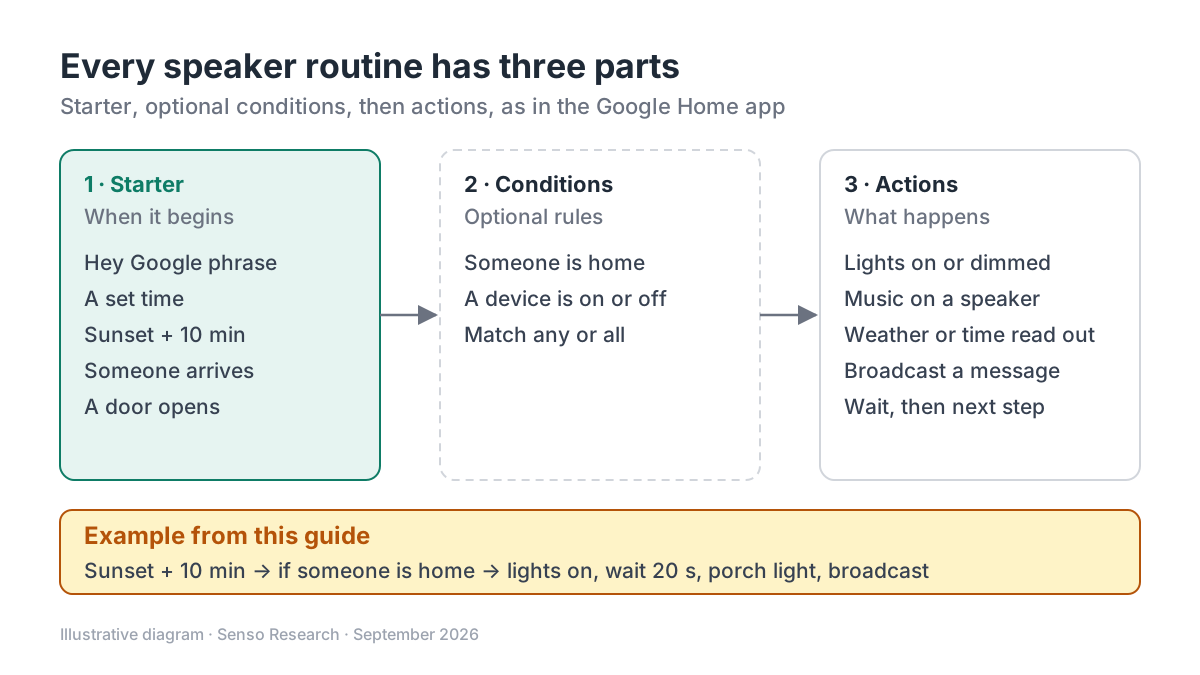 Original diagram by Senso Research. Simplified; supported starters and actions vary by device and change over time.
How the options compare
| What you need to know | Google Home Speaker + Google Home app | Amazon Echo + Alexa app | Apple HomePod + Home app |
|---|---|---|---|
| Where you build it | Add, then Automation; name it, add starters, conditions and actions | More, then Routines; add an event, then actions | Add, then Add Automation |
| Example triggers | Voice phrase, time, sunrise or sunset, presence, device events | An event you pick in the app; Voice ID phrases | Time of day, location, sensor detection, an accessory changing |
| Who a routine serves | Household automations; Personal Routines are set up separately | The whole home or one Alexa profile | The home, with scenes you can run by asking Siri |
| Extra requirement | Premium for Help me create and familiar-face starters | Visual ID presence routines need a compatible Echo and Alexa+ | A home hub, such as HomePod |
Sources: Google Home Help, Amazon Customer Service and Apple Support; checked September 25, 2026. The Google Home Speaker price is the Google Store US list price in USD, before tax.
Where Google Home fits — and where it doesn't
Choose Google Home when you want one editor that handles voice, clock, sun and presence triggers together. Google says the speaker groups with other Nest speakers and displays, and its sample routine broadcasts a bedtime message on every speaker. The automation editor lets you name a routine, stack starters, conditions and actions, and save it, and the Automations tab lists up to the next five scheduled automations. With a Premium plan, Help me create turns a typed or spoken request into a draft you can edit before saving. Premium Standard costs $10 a month or $100 a year.
Know the limits. Google says automations are for convenience, not safety, and that camera detections used as starters may not always be reliable. Third-party devices vary: a light might switch on by voice but not change color. Help me create is limited to adult admins.
Consider Amazon Alexa instead when your home already runs on Echo devices. Amazon's routine steps let you choose whether a routine serves the whole home or one person's Alexa profile, and a Voice ID can start a routine when Alexa recognizes that person's phrase.
Consider Apple Home instead when everyone uses Apple devices. Apple says automations need a home hub, such as a HomePod, and scenes like a good-night setting can control several accessories at once.
A worked example: an evening routine
Illustrative setup: a Google Home Speaker and two smart lights, built in the Google Home app.
- Tap Add, then Automation, and name it Evening lights.
- Starter: ten minutes after sunset. Because it follows the sun, it shifts through the year without edits.
- Condition: someone is home, so an empty house stays dark.
- Actions: turn on the living room light, wait 20 seconds, turn on the porch light, then broadcast that dinner is at seven.
- Save and test by starting it manually.
- Build a second automation with a Hey Google phrase such as movie night as its starter and a dimming action.
Cost arithmetic, illustrative: the speaker alone is $99.99. Adding Premium Standard on the annual plan brings the first year to $99.99 + $100 = $199.99; paying monthly would be $99.99 + $120 = $219.99.
Checklist before you decide
- Write the routine as one sentence. When this happens, if this is true, do these things.
- Check device support. Google notes that not every device supports every starter, condition or action.
- Prefer sun-based starters for lighting. Sunset with an offset avoids re-editing clock times each season.
- Add a condition before adding more actions. A presence condition keeps a routine from running in an empty house.
- Keep safety off the list. Use locks, alarms and detectors on their own terms, not only through a routine.
- Decide who can edit. Admins and members with settings permission can change household automations.
Common questions
Do I need a subscription to build routines on a Google speaker?
Not for most. Google's help pages name Premium for Help me create and for some traits, such as familiar-face starters; they list no such requirement for the rest of the editor.
Can a routine run without anyone saying a word?
Yes. Time, sunrise or sunset, presence and device-event starters run on their own. A voice phrase is only one type of starter.
Can I make a routine that runs only once?
Yes, with Help me create. Google says wording such as only once or the next time creates an automation that deletes itself after it starts.
Take this with you: Plan each routine as starter, condition and actions, and use sunset rather than clock times for lights so it keeps pace with the seasons.
Next step: Open the Google Home app, tap Add and then Automation, and rebuild one thing you do by hand every evening, following Google's automation editor guide.
Sources and how this guide was prepared
- Google Store — Google Home Speaker — price, Premium plan prices, Help me create listed as a Premium feature; checked September 25, 2026.
- Google Home Help — Supported automation starters, conditions & actions — starter, condition and action types, reliability and compatibility notes, one-time automations; checked September 25, 2026.
- Google Home Help — Create automations in Google Home with Help me create — how Help me create works, Premium and admin requirements; checked September 25, 2026.
- Google Home Help — Manage smart home automations in Google Home — editor steps, permissions, convenience-only guidance, Premium-only traits; checked September 25, 2026.
- Amazon Customer Service — Create an Alexa Routine in the Alexa App — routine steps, home versus profile routines, Voice ID starters; checked September 25, 2026.
- Apple Support — Create scenes and automations with the Home app — home hub requirement, automation triggers, scenes; checked September 25, 2026.
This guide summarizes public help-center and product pages from the companies named; we did not test the products hands-on. Features and supported devices change; confirm details on each company's site.
Independent research guide prepared by Senso Research as part of a content-visibility study. Not sponsored by, affiliated with, or reviewed by any company mentioned. Sources checked September 25, 2026.